
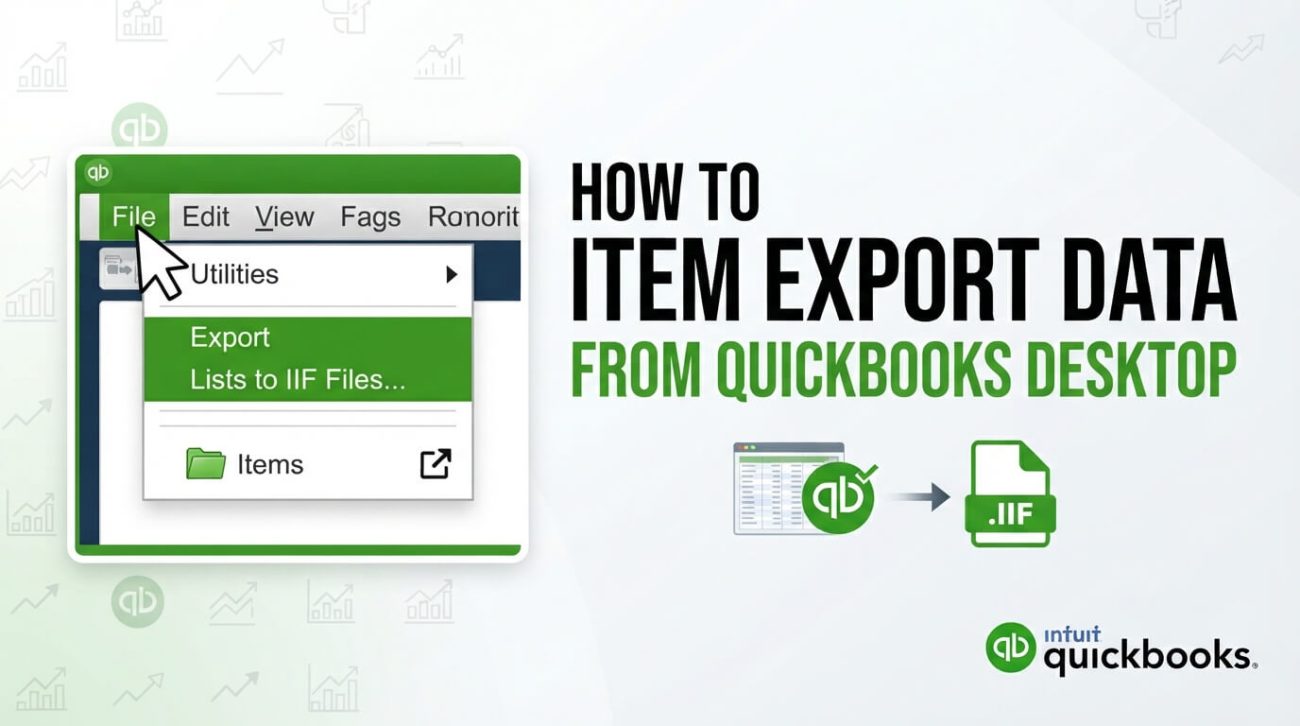
Exporting item lists can help with inventory analysis, audits and migration. The labels and menus may vary depending on the QuickBooks Desktop edition and release you are using.
Decide what you need to export
Identify whether you need a list of inventory items, services, non-inventory items, prices or quantities. Check that the export includes the correct item identifiers, descriptions, tax treatment and inactive-status flags for the intended purpose.
Use the application's available export tools
In supported Desktop releases, look for the item list and export or report options relevant to your edition. Where an Excel or CSV export is supported, choose the necessary columns and save a copy outside the live company file. Avoid editing the only copy of your accounting data.
Validate the resulting file
Open the exported file, compare totals and item counts with your source report, and check formulas, date fields and character encoding. If importing into a different system, test a small set first and maintain a full company-file backup.
For Enterprise users
QuickBooks Enterprise workflows can involve more complex item and inventory records. Confirm that the export format preserves the information your new system requires, and consult support before a large migration.
Explore our current Enterprise Platinum license
One year, up to 30 users, $1,900 USD. One-time prepaid checkout, with digital license delivery within 24 hours after confirmed payment; no automatic renewal. Need more than 30 users? Request an individual quote.
View the current product · See the order page · Request a quote